

Key takeaways
- Compare 5 18-inch creator laptops for 3D rendering, from RTX 5090 flagships to a lighter RTX 5060 option, and pick the right screen, GPU and memory for your scenes.
An 18-inch creator laptop is a bet on screen space over portability. Rendering a scene means staring at viewports, timelines, node graphs and reference images for hours, and a larger panel keeps those panels from crowding each other out. The real decision is how much GPU and memory your scenes demand, because a laptop that copes with a still image can still crawl when you add volumetric light, high-resolution textures and a second application running beside the renderer.

This guide is for freelance 3D artists, motion designers, architecture visualizers and students building a first rendering workstation that still fits in a bag. It also suits editors who render previews between cuts and need the timeline visible while a render runs in the background. Every laptop below was picked from its Amazon product title and listed specifications, with the display size, graphics card, memory and storage taken from the listing itself.
Quick Picks
As an Amazon Associate we earn from qualifying purchases
| Product | Best for | Key spec from title |
|---|---|---|
| Lenovo Legion 9i Gen 10 | Huge scenes and naked-eye 3D previews | RTX 5090, 64GB RAM, 2TB SSD, 18-inch 4K 240Hz display |
| MSI Raider 18 HX AI | Maximum memory and storage headroom | RTX 5090, 96GB RAM, 2TB Gen5 plus 2TB Gen4 SSD, 18-inch 4K display |
| Alienware 18 Area-51 | Long sessions with a huge local library | RTX 5080, 64GB RAM, 8TB SSD, 18-inch WQXGA 300Hz display |
| GIGABYTE Gaming A18 | Mid-range budgets that still need a big canvas | RTX 5070, 32GB RAM, 1TB SSD, 18-inch WQXGA 165Hz display |
| ASUS TUF A18 | A first 18-inch rendering laptop | RTX 5060, 32GB RAM, 1TB SSD, 18-inch WUXGA 144Hz display |
How to Choose
Match the GPU to the renderer you actually use
A graphics card decides how fast a GPU renderer finishes a frame and how smoothly a viewport orbits a heavy scene. Look for the GPU model and its video memory in the listing, then check whether your renderer leans on CUDA, OptiX or another framework the card supports. A card with 16GB of video memory or more handles larger texture sets and higher-resolution output without spilling work back to system memory, which is where renders slow down sharply. If your scenes are mostly product shots with modest geometry, a mid-range card leaves budget for memory and storage instead.
Treat system memory as scene headroom
Rendering eats system memory in ways that are easy to underestimate, because the application, the scene, the textures and the operating system all share the same pool. A laptop with 32GB of memory suits single-scene work and lighter projects, while 64GB gives a scene room to grow and lets you keep a browser, a reference viewer and a compositing tool open at the same time. Memory also matters when you bake simulations or cache frames, since those steps hold large chunks of data in RAM. Check whether the listing states the memory as two modules, which usually means a future upgrade is possible.
Read the display like a work surface, not a spec sheet
An 18-inch panel earns its size only if the resolution and color coverage suit the work. A 4K panel shows fine detail in textures and lets you judge edges without zooming in constantly, while a WQXGA panel still gives plenty of room for panels and timelines at a lower cost. Refresh rate matters less for still rendering than for viewport navigation, where a faster panel makes orbiting feel smoother. Look for the listed color coverage and brightness, and remember that a glossy high-brightness panel can be hard to judge in a bright room.
Plan storage around projects, not the operating system
Scene files, texture libraries, cached simulations and rendered frames accumulate fast, and a full drive slows everything from saving to loading. A 1TB drive works when you archive finished work to an external drive regularly, while 2TB or more suits artists who keep several active projects and a texture library on the machine. The listing should state whether the drive is a fast NVMe SSD, which shortens load times for heavy scenes. Also count the ports, since a rendering laptop often lives connected to an external monitor, a tablet and a fast external drive at the same time.
The 5 Best Options
Lenovo Legion 9i Gen 10
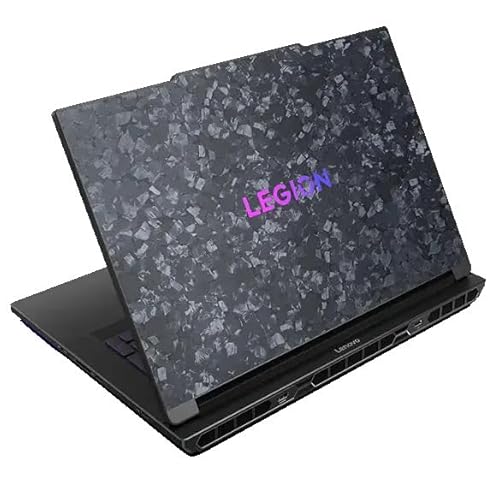
The Legion 9i Gen 10 suits a 3D artist whose scenes are large and whose deadlines are short. Its top-tier graphics card and generous memory keep heavy viewports responsive, and the high-resolution panel with naked-eye 3D gives a different way to inspect depth in a model before committing to a final render. The large fast drive holds several active projects without constant archiving, and the processor has enough cores to keep background tasks moving while a render occupies the graphics card. This is the pick when the laptop is the whole studio.
Specs
- 18.0-inch 4K display, 240Hz, 500 nits, naked-eye 3D
- Intel Core Ultra 9 275HX processor, 24 cores
- NVIDIA GeForce RTX 5090 graphics, 24GB
- 64GB DDR5 RAM
- 2TB Gen5 NVMe SSD
- Windows 11 Pro
Best for: artists rendering large scenes who want a 4K panel with a 3D preview option.
Watch out for: the naked-eye 3D mode suits some workflows and not others, so confirm it matches how you inspect models.
ASIN: B0F9XRY78W
MSI Raider 18 HX AI
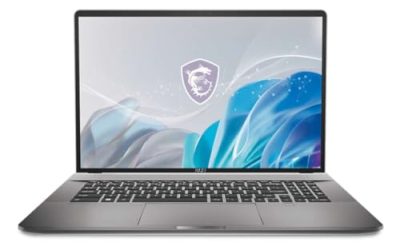
The Raider 18 HX AI is built for the artist who refuses to close applications to free up memory. With more system memory than any other laptop in this guide and two fast drives, it holds a scene, a texture library, a browser full of references and a compositing tool at once. Its high-resolution Mini LED display shows fine detail clearly, and the top-tier graphics card handles demanding renders and real-time previews alike. The trade-off is bulk, so this machine makes most sense as a portable workstation that moves between a desk and a studio rather than a daily travel companion.
Specs
- 18-inch 4K UHD+ Mini LED display, HDR
- Intel Core Ultra 9 285HX processor, 24 cores
- NVIDIA GeForce RTX 5090 graphics
- 96GB DDR5 RAM
- 2TB Gen5 SSD plus 2TB Gen4 SSD
- Windows 11 Pro, Wi-Fi 7, per-key RGB keyboard
Best for: heavy multitaskers who keep many large applications and projects open at once.
Watch out for: check the total weight and charger size before planning to carry it every day.
ASIN: B0FZMNXXBS
Alienware 18 Area-51
The Alienware 18 Area-51 fits the artist whose bottleneck is storage rather than raw speed. Its enormous drive holds years of project files, texture packs and rendered frames without forcing constant cleanup, which matters when old scenes get reopened for revisions. The fast high-resolution display keeps viewport motion smooth, and the graphics card and memory are strong enough for demanding scenes. This is a sensible middle path between the two flagships above: slightly less graphics muscle, far more room for work.
Specs
- 18-inch WQXGA display, 300Hz, 500 nits, full DCI-P3 color coverage
- Intel Core Ultra 9 275HX processor, 24 cores
- NVIDIA GeForce RTX 5080 graphics, 16GB
- 64GB DDR5 RAM
- 8TB SSD
- Windows 11 Pro, Wi-Fi 7
Best for: artists with a large local library of scenes, textures and finished renders.
Watch out for: confirm how the storage is configured, since a single huge drive and two smaller drives behave differently if one fails.
ASIN: B0FMWQQS6Y
GIGABYTE Gaming A18
The GIGABYTE Gaming A18 is the value pick for a creator who needs an 18-inch canvas without flagship cost. Its graphics card still carries the modern feature set for GPU rendering, and 32GB of memory is enough for single-scene work, product visualization and learning complex software. The high-resolution display runs at a fast refresh rate, so orbiting a model feels fluid, and the slim chassis with a flat-opening hinge adapts well to a desk setup. Choose this one when the work is real but the scenes are not enormous.
Specs
- 18-inch WQXGA display, 165Hz, 2560 by 1600 resolution
- AMD Ryzen 7 260 processor
- NVIDIA GeForce RTX 5070 graphics
- 32GB DDR5 RAM
- 1TB SSD
- Windows 11 Home, 180-degree hinge, slim chassis
Best for: product visualizers and learners who want a large screen on a mid-range budget.
Watch out for: heavy scenes with large texture sets may need more memory than the listed 32GB.
ASIN: B0FXZ5B9SN
ASUS TUF A18
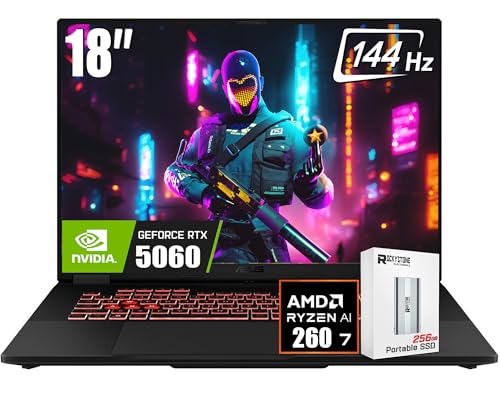
The ASUS TUF A18 is the entry point into 18-inch rendering, and it makes sense for a student or a hobbyist turning a side project into paid work. Its graphics card handles GPU rendering and AI-assisted creative workflows, while 32GB of memory and a 1TB drive cover a first portfolio of projects. The full HD plus display is the least sharp panel here, so fine texture work needs more zooming, but the large physical size still keeps interface panels from crowding the viewport. It is also the most portable-minded pick in this group.
Specs
- 18-inch WUXGA IPS display, 144Hz, adaptive sync, anti-glare
- AMD Ryzen 7 260 processor, 8 cores
- NVIDIA GeForce RTX 5060 graphics, 8GB
- 32GB RAM
- 1TB PCIe SSD
- Windows 11, RGB backlit keyboard
Best for: students and new freelancers buying a first large-screen rendering laptop.
Watch out for: the lower-resolution panel shows less fine detail, so check texture work on an external display when it matters.
ASIN: B0G521VSK3
Which One Fits Your Situation
You render large architectural or film scenes
Pick the Lenovo Legion 9i Gen 10. Its top-tier graphics card, 64GB of memory and fast 2TB drive are built for scenes with heavy geometry and high-resolution textures, and the 4K panel lets you inspect detail without constant zooming. The naked-eye 3D preview is a bonus for checking depth in a model.
You keep everything open at once
Pick the MSI Raider 18 HX AI. With 96GB of memory and two large drives, it is the only laptop here that comfortably holds a renderer, a compositing tool, a browser full of references and a texture library simultaneously. The Mini LED 4K display keeps fine detail visible during long sessions.
Your project library keeps growing
Pick the Alienware 18 Area-51. Its 8TB drive removes the weekly cleanup ritual, and the fast display and strong graphics card mean you give up little speed for that space. It suits artists who revisit old scenes for client revisions. Reopening an old scene for a revision should not start with a cleanup chore.
You are starting out and watching the budget
Pick the ASUS TUF A18, or step up to the GIGABYTE Gaming A18 if your scenes are heavier. Both give you the 18-inch canvas and a modern graphics card, and the GIGABYTE adds a sharper display and a stronger GPU for product work and mid-sized scenes. Either way, the large screen stays useful as your scenes grow.
Common Mistakes
- Buying the biggest GPU and ignoring memory, then watching large scenes slow down when RAM fills up.
- Choosing a laptop by display size alone without checking the resolution and color coverage in the listing.
- Filling a 1TB drive with texture libraries and caches, then losing time to constant archiving.
- Assuming every listing with the same model name has the same GPU, memory and storage.
- Forgetting to check port selection before the laptop becomes the hub of a desk setup.
Frequently Asked Questions
Is an 18-inch laptop too big to carry every day?
It depends on your routine. An 18-inch machine and its charger take up real space in a bag and add noticeable weight, so it suits artists who move between a home desk and a studio more than daily commuters. Measure your bag against the listed dimensions before ordering.
How much video memory do I need for 3D rendering?
Video memory holds the textures and geometry the GPU is working on, so larger scenes need more of it. A card with 8GB suits learning and lighter product work, while 16GB or more gives headroom for detailed scenes and higher-resolution output without slowing down.
Does a faster display help with rendering?
A faster display does not shorten render times, since rendering depends on the GPU and processor. It does make viewport navigation smoother, which helps when you orbit, pan and scrub through a scene for hours. Resolution and color coverage matter more for judging the finished image.
Should I choose more RAM or more storage?
Choose memory first if your scenes are large, because running out of RAM slows a render immediately. Choose storage first if you keep many finished projects and texture libraries on the machine. When both are tight, the MSI Raider 18 HX AI in this guide covers both, while the Alienware 18 Area-51 leans toward storage.
More from Amazon
Programs that pair well with the guide above. Offers and eligibility are set by Amazon and may change.
Free shipping on eligible items, Prime Video and more. Eligible new members can start with a free trial.
Start a Prime free trialAudiobooks and podcasts to listen to on the go. Eligible new members can start with a free trial.
Try Audible freeAd-free music streaming. Eligible new subscribers can start with a free trial.
Try Music Unlimited freeA free business account with business pricing and bulk-buying tools for work, shop or home office.
Create a business accountAs an Amazon Associate we earn from qualifying purchases.



Write Your Review
No reviews yet. Be the first to share your experience!